trackandsim.com
● Real track days, same dashboard

Bring your RaceBox laps home to the sim.

Record a track day with a RaceBox GPS lap timer, export the session from the RaceBox app, and GTelemetry gives you the same summary, coaching and driver's-view render you get for your Gran Turismo 7 laps.
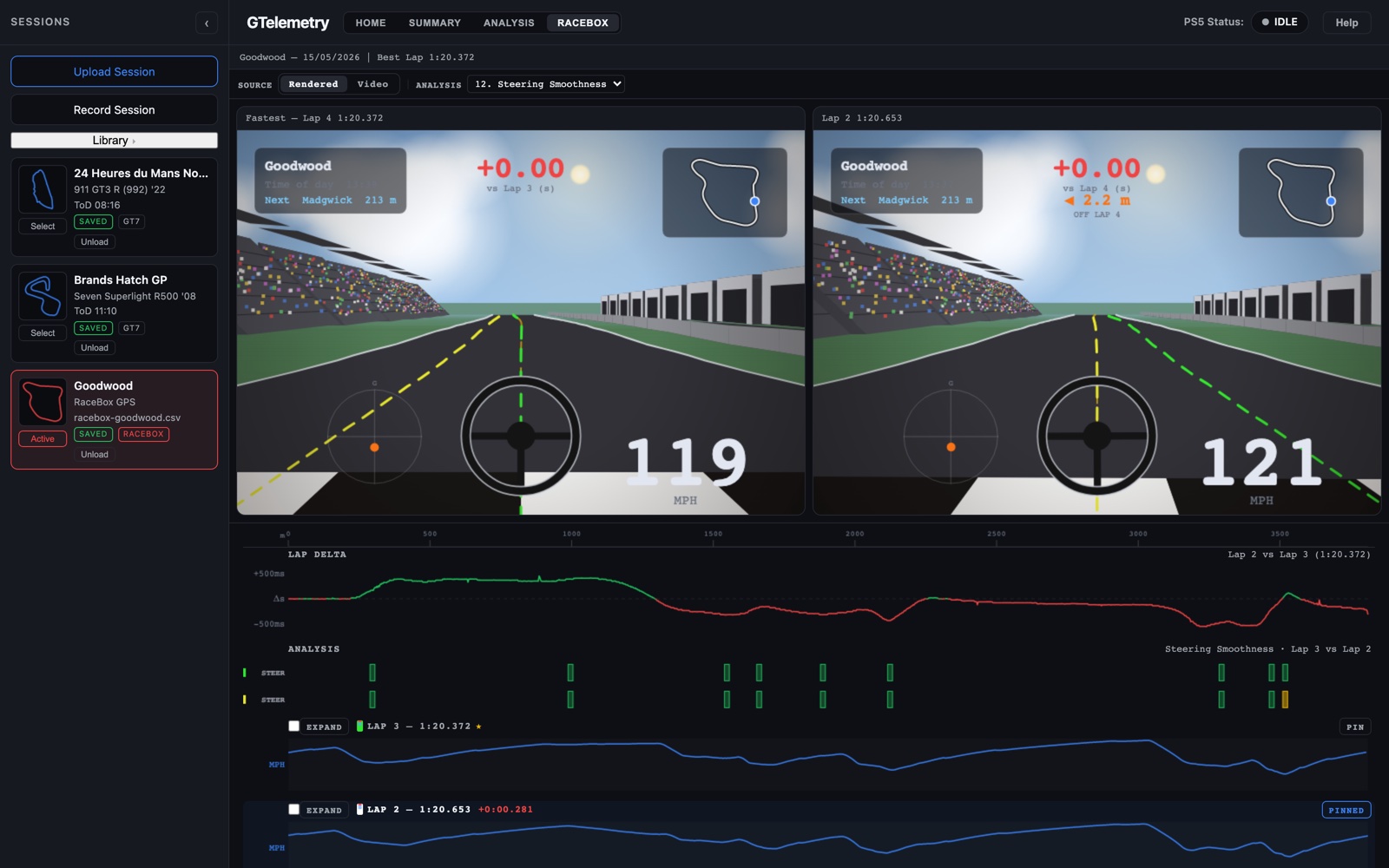
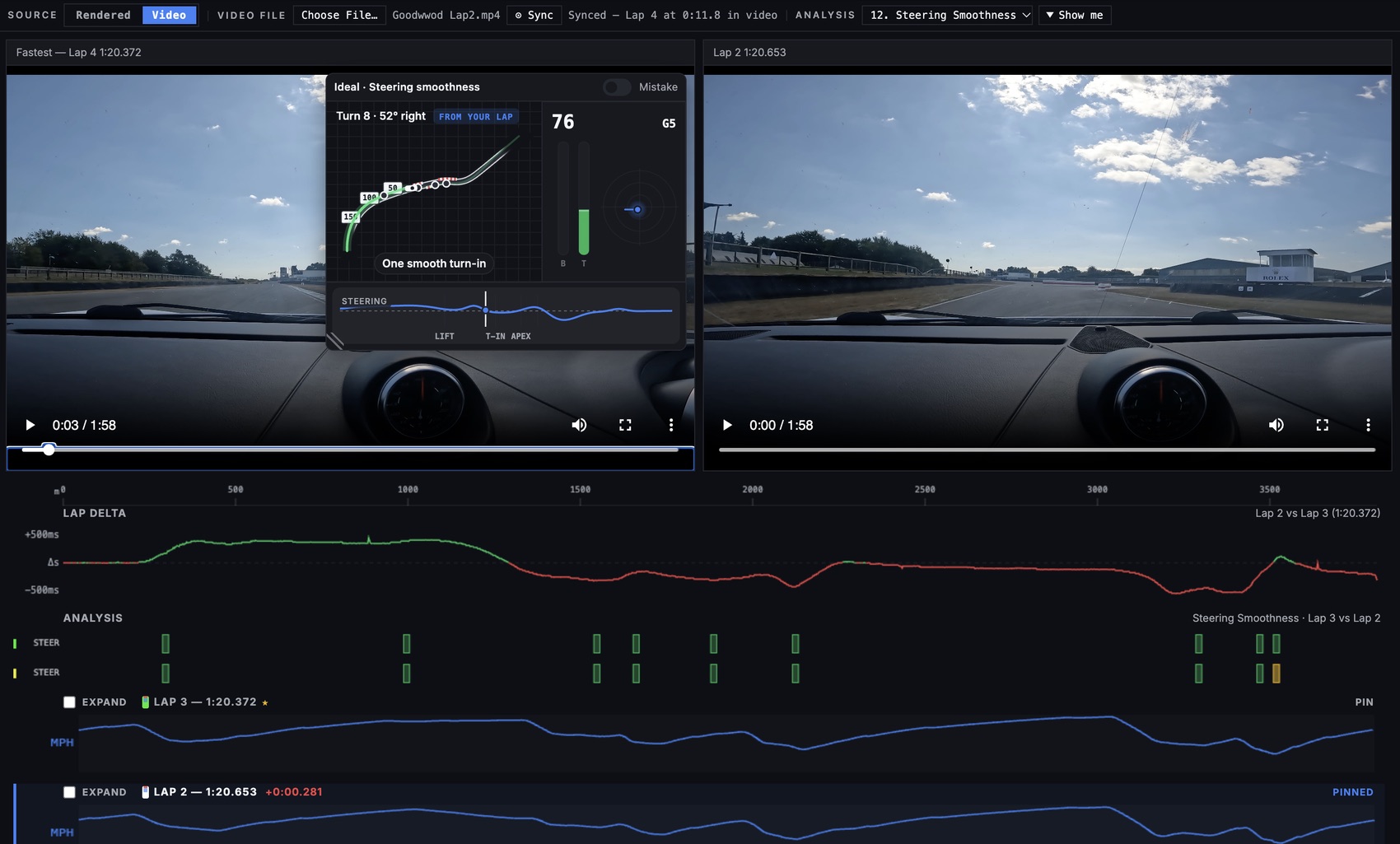
Driver's-view render of two real laps at Goodwood, rebuilt from RaceBox GPS data
The hardware

What is a RaceBox?

RaceBox makes GPS lap timers and data loggers for cars, bikes and karts. A small unit sits in the car, tracks your position many times a second from several satellite systems at once, and measures the forces on the car. The RaceBox phone app turns that into lap and sector times.

Compact logger

RaceBox Mini

Position rate
25 Hz
Satellites
GPS, GLONASS, Galileo, BeiDou
Motion
±8 G accelerometer, ±320°/s gyro
Link
Bluetooth 5.2 to your phone
Battery
Up to 20 hours

Records through the RaceBox app, so your phone stays connected for the session.

Compact, standalone

RaceBox Mini S

Position rate
25 Hz
Satellites
GPS, GLONASS, Galileo, BeiDou
Motion
±8 G accelerometer, ±320°/s gyro
Storage
Built in
Battery
Up to 20 hours

Same sensors as the Mini, with its own storage, so it can log without the phone. Sync to the app afterwards.

With display

RaceBox

Position rate
10 Hz
Satellites
GPS, GLONASS, Galileo, BeiDou
Motion
±4 G accelerometer
Screen
2.4″ colour, live lap timer
Battery
Up to 8 hours

The original unit with a built-in screen for live and predictive lap times on the dash.

Specifications as listed by RaceBox in October 2026. Check racebox.pro for current details and pricing.
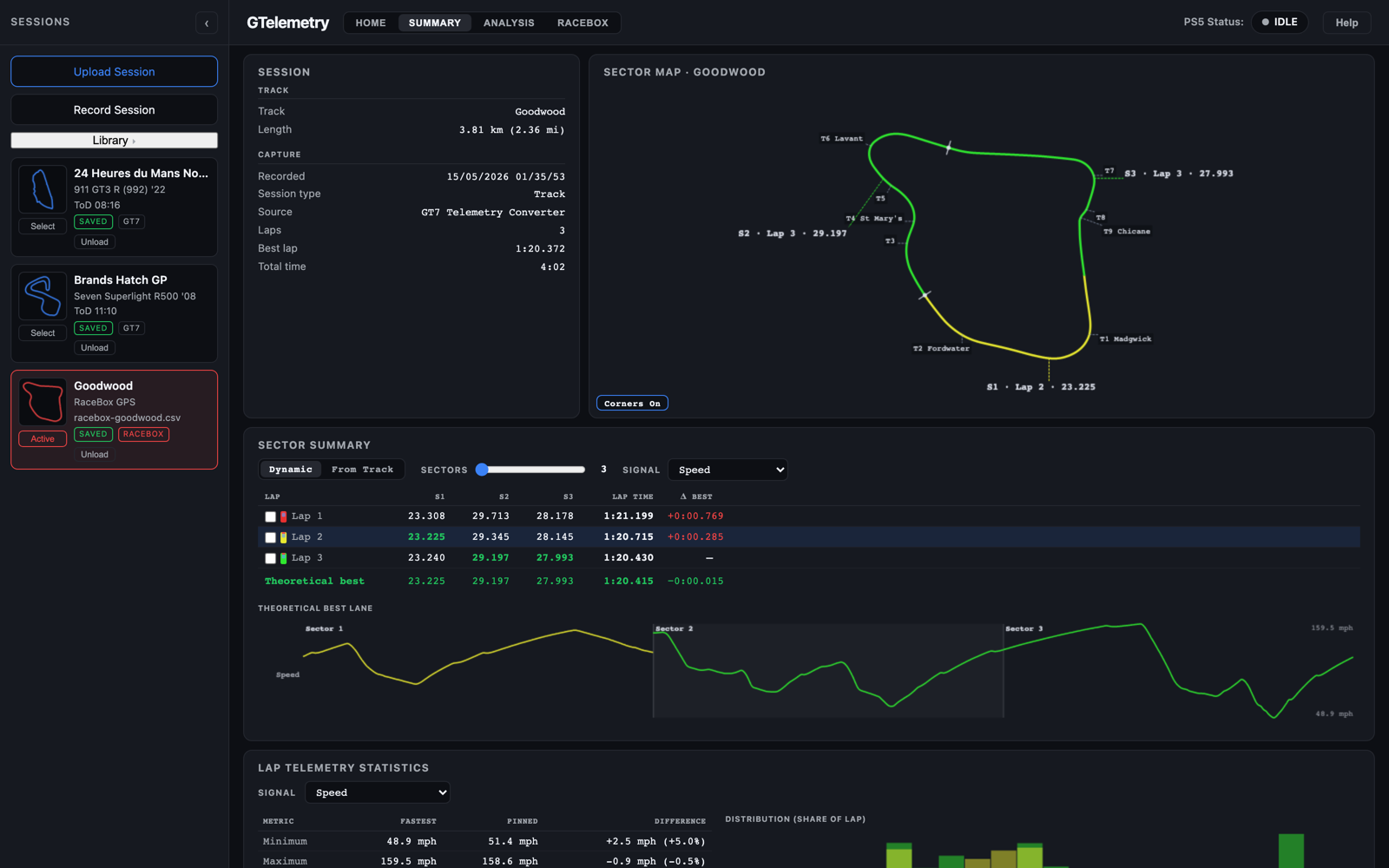
Summary page for a RaceBox session with lap table, sector times and track map
Summary

Your track day, lap by lap.

Every lap and sector time comes straight from the RaceBox. GTelemetry adds the rest.
  • Sector map with the fastest time in each sector picked out
  • Theoretical best stitched from your best sectors
  • Two sector views: the sectors your RaceBox recorded, or GTelemetry's own split
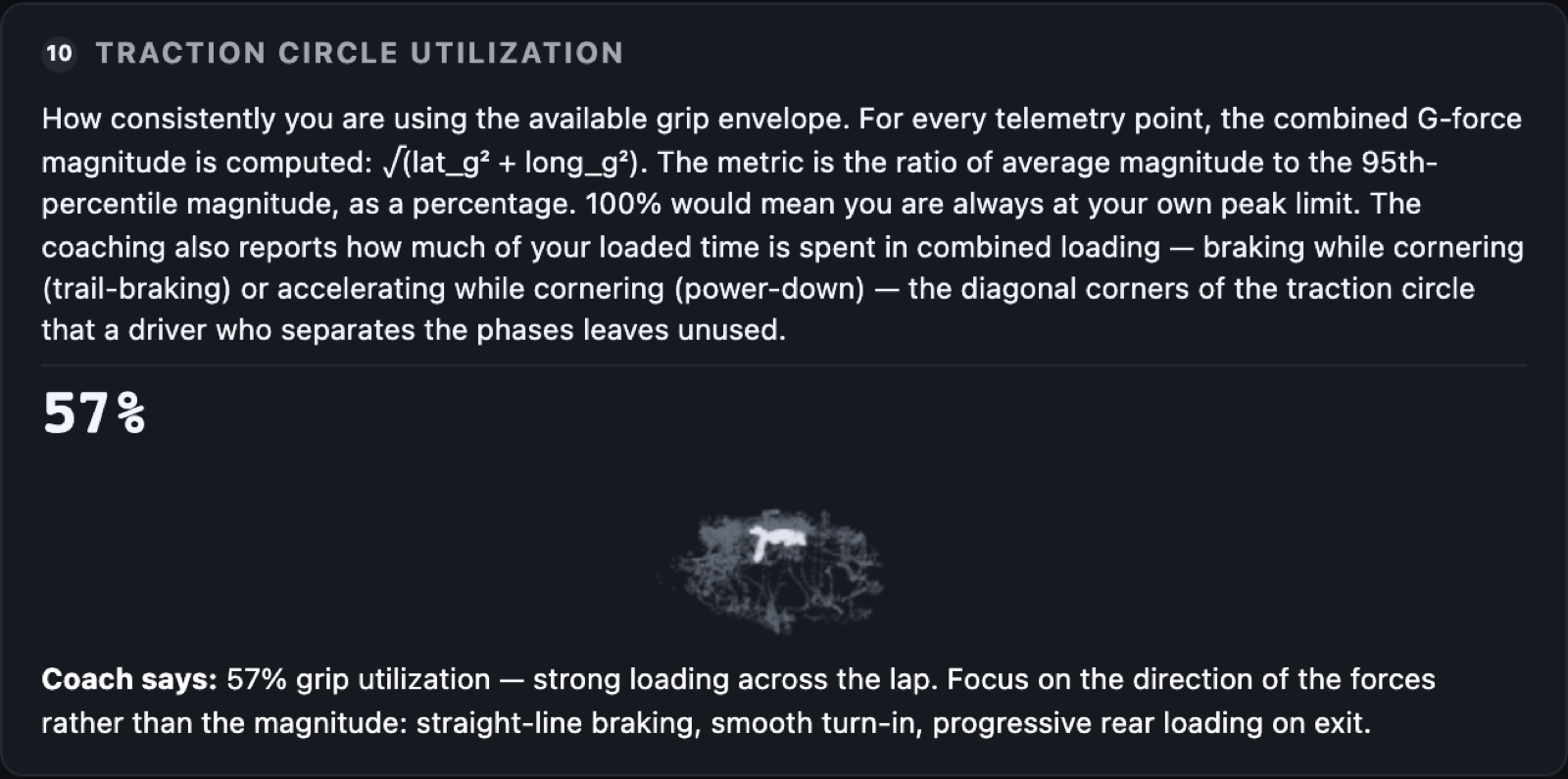
Traction circle analysis card
Analysis

Four coaches that only need GPS.

A RaceBox can't see your pedals, so GTelemetry runs the four analysis cards that work from your line, speed and grip.

  • Min Corner Speed: where you carry less speed than your best lap
  • Traction Circle: how much of the available grip you use
  • Steering Smoothness: one clean arc, or corrections mid-corner
  • Driving Line: how far you are from your fastest line, corner by corner
Driver's view

Watch the render, or your own onboard footage.

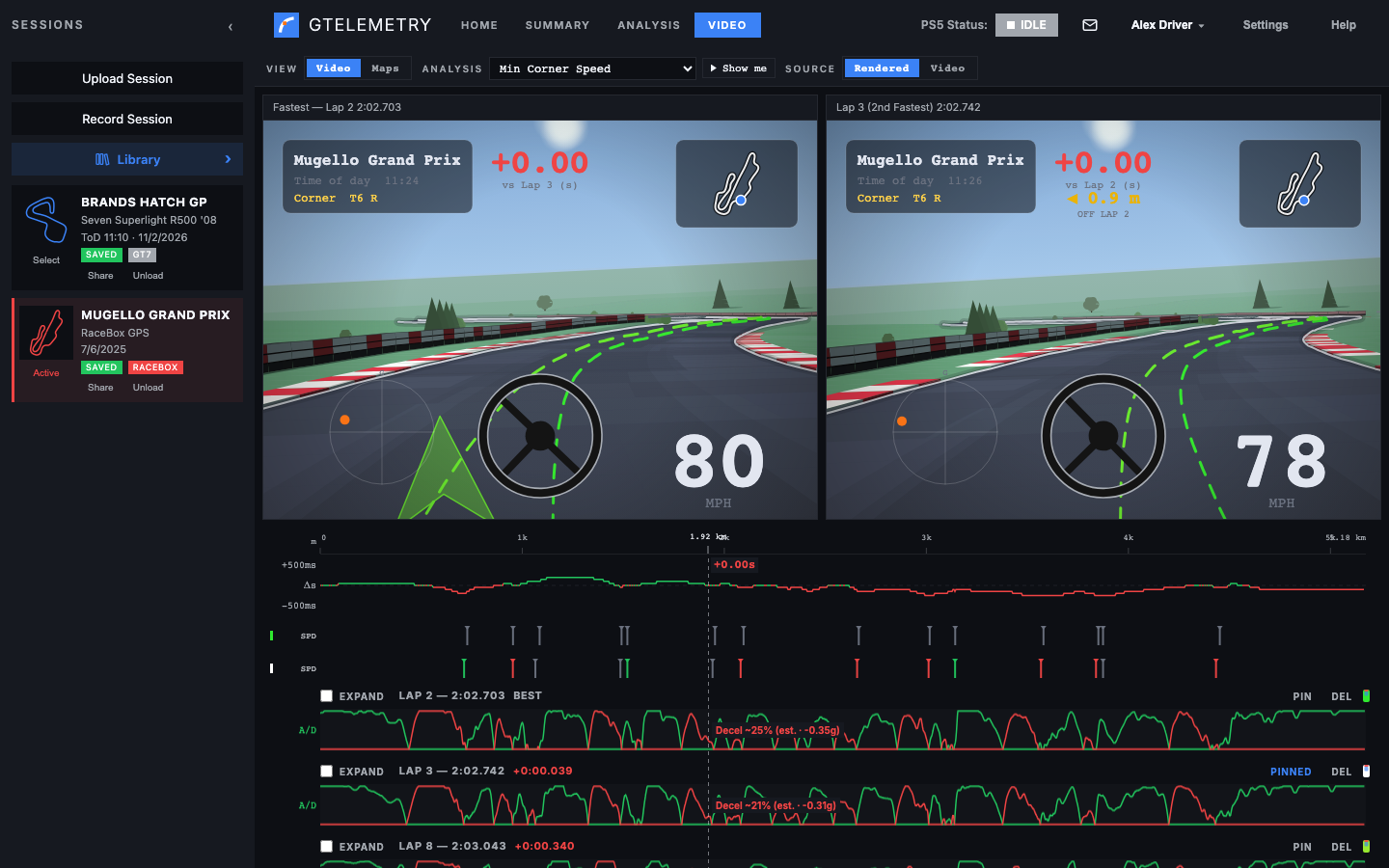
The Video page shows two laps side by side above a timeline of lap delta and analysis lanes, the same page you use for your sim laps. Choose what fills the two panels.
Source
The Video page for a RaceBox session, with two rendered driver's-view panels above the lap delta and analysis lanes
Rendered

No camera needed

  • A driver's view rebuilt from the GPS data alone
  • Real corner names for known tracks
  • Works for every session you upload
Video

Your own onboard camera

  • Load the clip from your camera: MP4, MOV, WebM or M4V
  • Set one sync point at the start/finish line and the footage follows the timeline
  • Hover any analysis lane and the video jumps to that corner
  • Show me plays the ideal technique over your footage
  • The video plays in your browser and is never uploaded
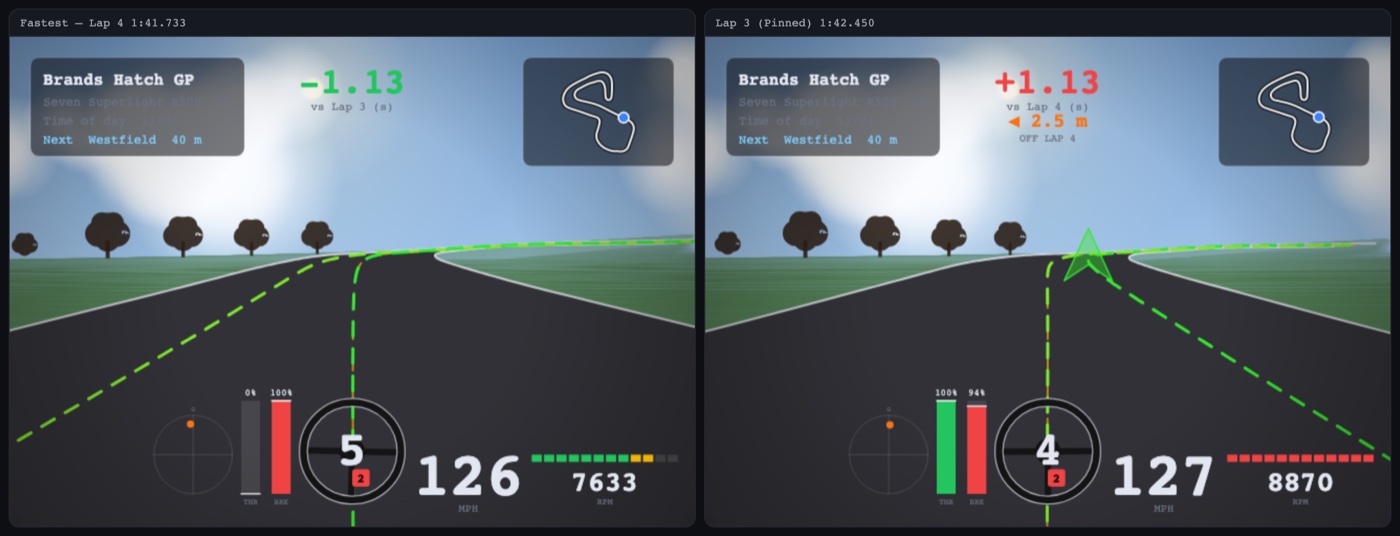
Gran Turismo 7 driver's-view render at Brands Hatch
Sim + real

Practise in the sim. Prove it on track.

Your RaceBox sessions live in the same Library as your GT7 laps. Learn a circuit in Gran Turismo 7, then read the same Driving Line, Min Corner Speed and Traction cards from your real lap at the same track and see which habits came with you.

  • One Library, grouped by track, so sim and real sessions sit together
  • Compare RaceBox laps across track days, or against a friend's shared session
  • Same corner names on both, so advice lines up
Getting started

From pit lane to dashboard

Record

Mount the RaceBox, start a session in the RaceBox app and drive.

Export

Open the session in the RaceBox app and export it as a Track Session CSV.

Upload

On the dashboard click Upload Session or drop the .csv onto the page.

Review

It opens on Summary. Then dig into Analysis, and watch each corner on the Video page with the render or your own onboard video.